What Are Word Content Controls and How Do You Use Them?
2026-06-23
TL;DR
You open a shared proposal template. Someone has typed free text into the date field, reformatted the heading font, and left the client name blank. The document is supposed to look identical every time. It does not.
Copying a clean version and emailing it out again costs ten minutes per document. Multiply that across a team sending thirty proposals a month and you lose five hours to formatting correction alone.
Word content controls solve this by locking the structure of a document while leaving specific spots open for input. Each spot accepts only the kind of data you assign to it: a date, a selection from a list, a checkbox, or typed text. This article is for operations managers, template owners, and anyone building documents that other people fill in. It covers all nine control types, how to place and configure them, and exactly when the tool earns its complexity.
* * *
What Are Word Content Controls?
Word content controls are structured placeholders embedded directly inside a document. Each one defines what kind of input belongs in that spot and prevents the surrounding layout from shifting when someone fills it in.
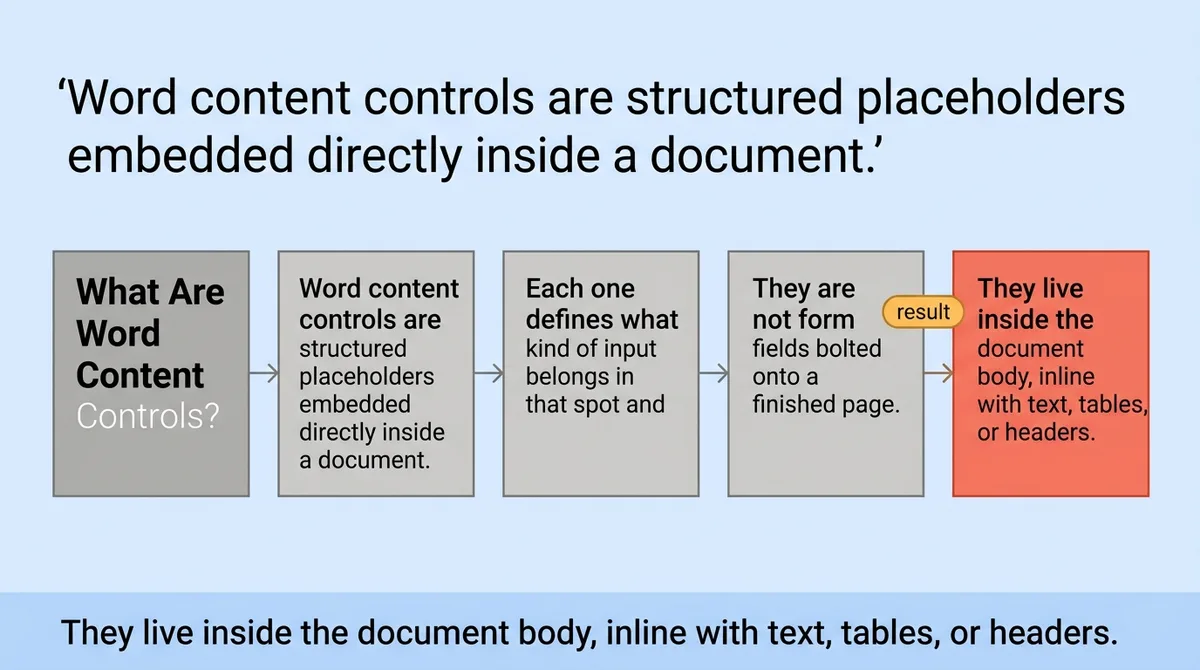
They are not form fields bolted onto a finished page. They live inside the document body, inline with text, tables, or headers.
* * *
What a Content Control Actually Does Inside a Word Document
Most people who discover content controls assume they are a formatting tool. That assumption causes problems immediately.
A content control is a data boundary. It tells Word: this region accepts one specific kind of input, nothing else goes here, and the rest of the document stays put regardless of what the user types or selects.
Word 2010 defined nine distinct control types: rich text, plain text, picture, building block gallery, combo box, drop-down list, date, checkbox, and group. [\[1\]](#ref-1) Each type matches a different input pattern. A date picker prevents someone from typing "January fifth" when your system expects "01/05/2025." A drop-down list stops free-text answers in a field that should only hold three possible values.
The difference between a content control and a simple placeholder like `[INSERT NAME HERE]` is enforcement. A bracketed placeholder relies on the user to find it, replace it correctly, and not accidentally delete the brackets. A content control handles all of that structurally. The user clicks, types or selects, and moves on. The layout does not shift.
Here is what each control type handles:
<table class="border-collapse w-full my-4 table-auto mx-4 max-w-4xl sm:mx-auto" style="min-width: 75px;"><colgroup><col style="min-width: 25px;"><col style="min-width: 25px;"><col style="min-width: 25px;"></colgroup><tbody><tr><th class="border border-border px-4 py-3 bg-muted font-semibold text-left" colspan="1" rowspan="1"><p>Control Type</p></th><th class="border border-border px-4 py-3 bg-muted font-semibold text-left" colspan="1" rowspan="1"><p>What It Accepts</p></th><th class="border border-border px-4 py-3 bg-muted font-semibold text-left" colspan="1" rowspan="1"><p>Best Use</p></th></tr><tr><td class="border border-border px-4 py-3" colspan="1" rowspan="1"><p>Plain text</p></td><td class="border border-border px-4 py-3" colspan="1" rowspan="1"><p>Typed characters only, no formatting</p></td><td class="border border-border px-4 py-3" colspan="1" rowspan="1"><p>Names, IDs, short labels</p></td></tr><tr><td class="border border-border px-4 py-3" colspan="1" rowspan="1"><p>Rich text</p></td><td class="border border-border px-4 py-3" colspan="1" rowspan="1"><p>Typed text with bold, italic, lists</p></td><td class="border border-border px-4 py-3" colspan="1" rowspan="1"><p>Comments, notes, descriptions</p></td></tr><tr><td class="border border-border px-4 py-3" colspan="1" rowspan="1"><p>Picture</p></td><td class="border border-border px-4 py-3" colspan="1" rowspan="1"><p>An image file</p></td><td class="border border-border px-4 py-3" colspan="1" rowspan="1"><p>Logos, signatures, photos</p></td></tr><tr><td class="border border-border px-4 py-3" colspan="1" rowspan="1"><p>Date picker</p></td><td class="border border-border px-4 py-3" colspan="1" rowspan="1"><p>A calendar selection</p></td><td class="border border-border px-4 py-3" colspan="1" rowspan="1"><p>Contract dates, review dates</p></td></tr><tr><td class="border border-border px-4 py-3" colspan="1" rowspan="1"><p>Drop-down list</p></td><td class="border border-border px-4 py-3" colspan="1" rowspan="1"><p>One item from a fixed list</p></td><td class="border border-border px-4 py-3" colspan="1" rowspan="1"><p>Status fields, categories</p></td></tr><tr><td class="border border-border px-4 py-3" colspan="1" rowspan="1"><p>Combo box</p></td><td class="border border-border px-4 py-3" colspan="1" rowspan="1"><p>A list item or typed custom entry</p></td><td class="border border-border px-4 py-3" colspan="1" rowspan="1"><p>Flexible category fields</p></td></tr><tr><td class="border border-border px-4 py-3" colspan="1" rowspan="1"><p>Checkbox</p></td><td class="border border-border px-4 py-3" colspan="1" rowspan="1"><p>Checked or unchecked</p></td><td class="border border-border px-4 py-3" colspan="1" rowspan="1"><p>Approvals, confirmations</p></td></tr><tr><td class="border border-border px-4 py-3" colspan="1" rowspan="1"><p>Building block gallery</p></td><td class="border border-border px-4 py-3" colspan="1" rowspan="1"><p>A saved Word block</p></td><td class="border border-border px-4 py-3" colspan="1" rowspan="1"><p>Boilerplate clauses, disclaimers</p></td></tr><tr><td class="border border-border px-4 py-3" colspan="1" rowspan="1"><p>Group</p></td><td class="border border-border px-4 py-3" colspan="1" rowspan="1"><p>A protected region wrapping other controls</p></td><td class="border border-border px-4 py-3" colspan="1" rowspan="1"><p>Locking layout around a section</p></td></tr></tbody></table>
One sharp reality check: a content control does not validate the data after entry. It constrains the type of input at the moment of entry. If you need downstream validation or database integration, controls are one layer of a larger process, not the whole system.
* * *
How to Insert, Configure, and Display Controls Without Breaking Your Layout
Start with the Developer tab. Word hides it by default.
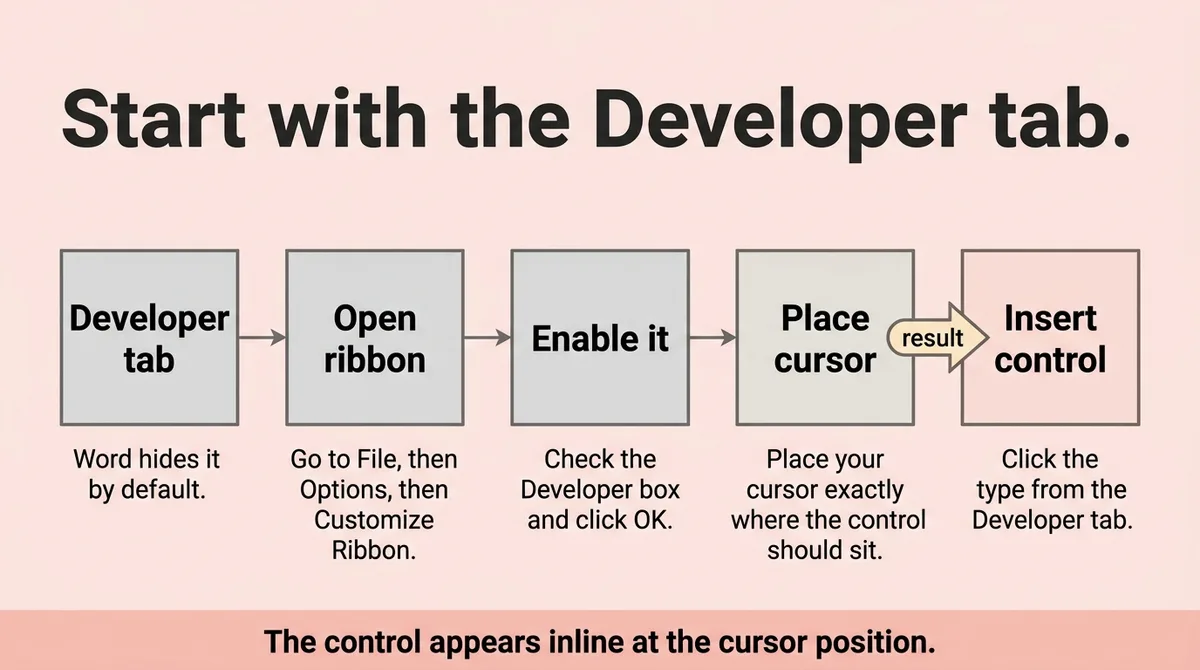
Go to File, then Options, then Customize Ribbon. Check the Developer box and click OK. The tab appears between View and Help in the ribbon.
Place your cursor exactly where the control should sit. Do not highlight existing text unless you want to wrap a control around it. Click the control type you want from the Controls group on the Developer tab. The control appears inline at the cursor position.
Setting the placeholder label
Click the control once to select it. Click Properties in the Controls group. The Properties dialog opens. Change the Title field to something descriptive, such as "Client Name" or "Contract Start Date." This label appears inside the control before the user types anything. A clear label removes guessing.
Configuring drop-down and combo box lists
Open Properties for either control. Use the Add button to build the list items one at a time. Each item has a display name and a value. The display name is what the user sees. The value is what gets stored. Keep list items short and mutually exclusive.
Locking the control
The Properties dialog includes two checkboxes: "Content control cannot be deleted" and "Contents cannot be edited." Use the first if you want the control to stay in place but remain fillable. Use the second if you want to display static text that no one can change.
Controlling how controls appear
Three visualization states exist for a content control: bounding box, start/end tags, and none. [\[1\]](#ref-1) The schema driving this adds two elements, appearance and color, to each control definition. [\[1\]](#ref-1) The appearance setting maps to three values: boundingBox, tags, and hidden. [\[1\]](#ref-1)
Bounding box is the default. The user sees a light border around the control. Tags show XML-style markers at each edge, which is useful when building or debugging a template. Hidden removes all visual indicators, making the control invisible to the end user while keeping its behavior intact.
For most fillable templates, bounding box is the right choice. Tags clutter the reading experience. Hidden works only when the control is pre-populated by a macro or external process.
Stop choosing "hidden" because it looks cleaner. Start choosing the visibility state that matches who fills in the document and how.
One implementation caveat worth knowing
XML mapping connects a content control to a custom XML part, but the mapping only works when the target is a leaf node or attribute in the XML structure. [\[1\]](#ref-1) Mapping to a parent node that contains child elements fails silently. The control appears to work but does not write data where you expect. Test mapped controls against real XML before distributing the template.
* * *
You Probably Do Not Need a Content Control Here , and That Is the Right Call
The biggest waste of time with content controls is applying them to documents that will only ever be filled in once by one person who already knows the format.
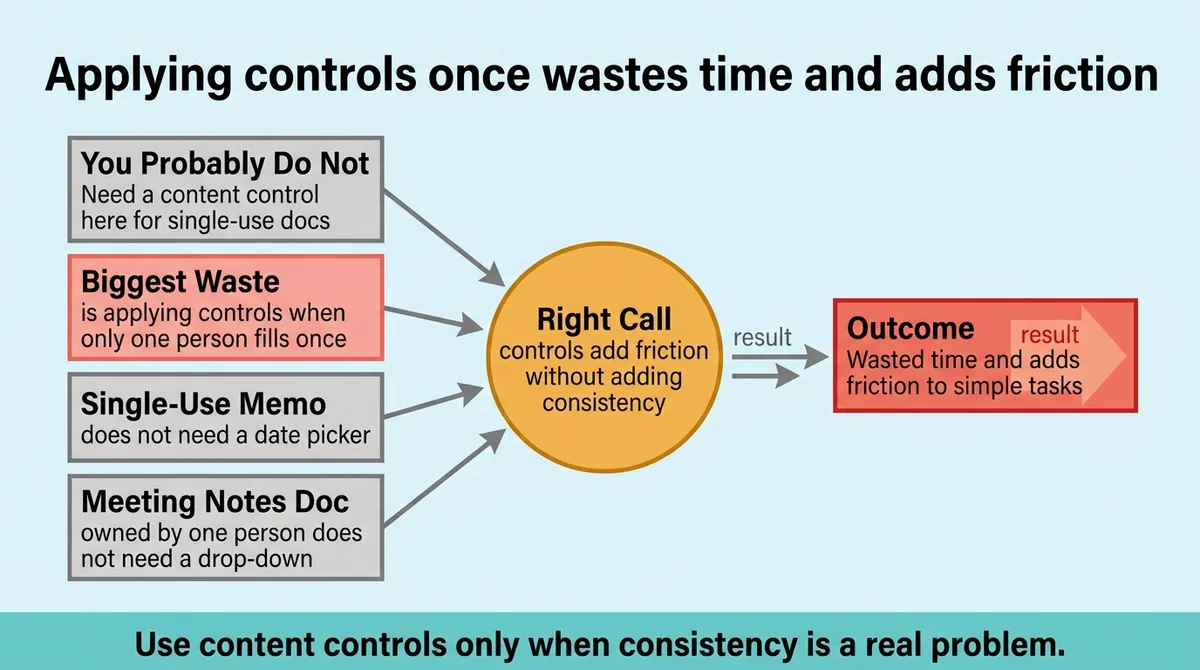
A single-use memo does not need a date picker. A meeting notes doc that one person owns does not need a drop-down for the meeting type. Adding controls to these documents adds friction without adding consistency, because there is no consistency problem to fix.
A real scenario that shows the cost: a publisher converted a 32-page picture book manuscript into a heavily controlled template. [\[2\]](#ref-2) Every paragraph received its own control, every heading got a separate control, and every dialogue tag was wrapped individually. [\[2\]](#ref-2) The result was a document carrying hundreds of content controls [\[2\]](#ref-2) that Word had to render, track, and store. Opening and saving the file slowed down measurably. The actual editing workflow became harder, not easier.
The correct rule: one control per paragraph, heading, or dialogue tag is already over-engineered for a manuscript. [\[2\]](#ref-2) Controls belong on fields where input type matters, input varies across instances, and the surrounding structure must stay intact.
Ask three questions before adding any control:
1. Will more than one person fill this in, or will the same person fill it in more than once? 2. Does the wrong input type here cause a real problem? 3. Would a normal user accidentally break the layout without a control?
If you answer no to all three, skip the control. Type normally. The goal is a usable document, not a feature-complete one.
* * *
Where Content Controls Actually Pay Off: Repeating Sections, Consistency, and Template Discipline
The clearest return on content controls comes from three document patterns: fields that repeat across many instances, table rows that expand with new data, and inputs that must stay within a fixed set of values.
Repeating sections
The repeating section control can duplicate content around entire paragraphs or table rows. [\[1\]](#ref-1) This is the control type that saves the most time in real operations work.
Consider a service agreement that lists deliverables. Each deliverable has a name, a due date, and a responsible party. Without a repeating section control, someone has to manually copy a table row, paste it below, clear the previous values, and re-enter everything. With a repeating section control wrapping that row, the user clicks a small button at the edge of the control, and a blank duplicate row appears instantly. The structure, formatting, and field constraints all carry over.
Word 2013 expanded content control support in three areas: visualization changes, XML mapping support for rich text controls, and repeating content. [\[1\]](#ref-1) The repeating content addition was the most operationally significant of the three. It removed a whole category of copy-paste errors from document workflows.
Consistency across a team
A team of eight sends client-facing proposals. Each person owns a few proposal types. Without a controlled template, every person makes small choices: different date formats, different capitalization on status fields, different line breaks after the signature block. Over a quarter, the documents look like they came from eight different companies.
A controlled template removes those choices from the equation. The date control formats the date. The status field only accepts the four approved values. The signature block is locked inside a group control. The person filling in the template makes content decisions, not formatting decisions.
When the discipline compounds
The real payoff is not in one document. It compounds when the same template gets used repeatedly. A contract template used 200 times [\[2\]](#ref-2) with consistent controls produces 200 documents that match each other structurally. Reviewing them, auditing them, or pulling data from them becomes a defined process rather than a manual inspection job.
That is the operational argument for Word content controls done correctly: they turn a one-time formatting effort into a durable system that works at volume.
* * *
When to Use Controls and When to Just Type
Use controls when a document will be filled in by multiple people or reused across many instances, when input type matters for downstream accuracy, and when layout integrity must survive someone who does not know the template well.
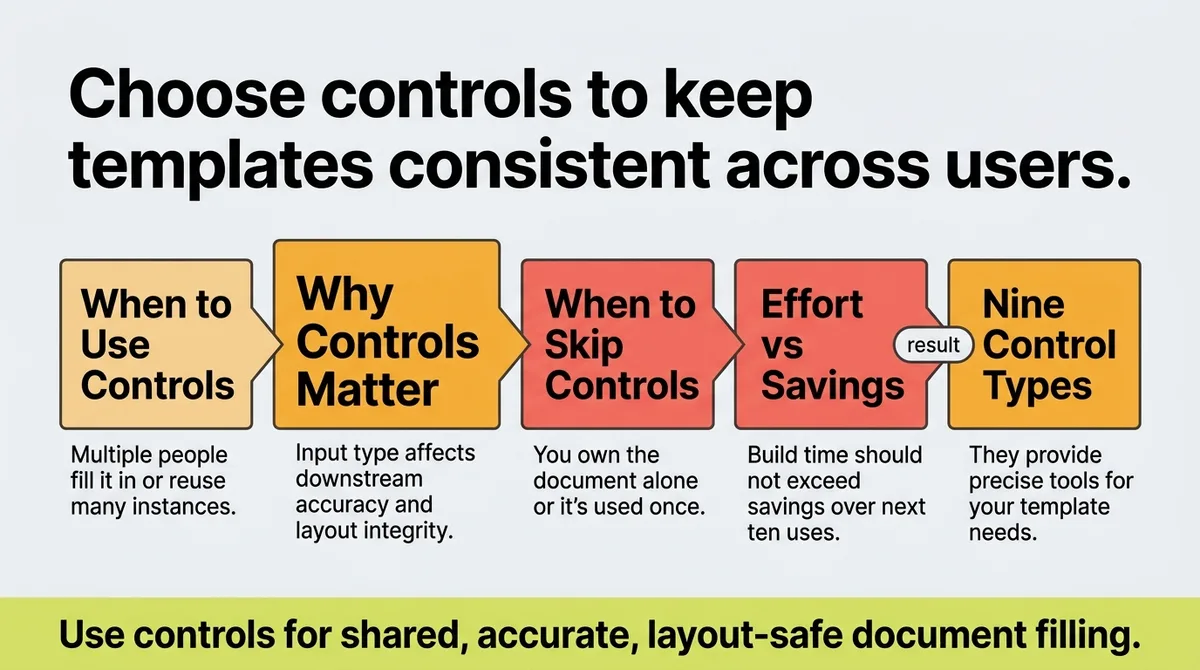
Skip controls when you own the document alone, when it will be used once, or when the effort to build the template exceeds the time it would save over the next ten uses.
The nine control types give you precise tools for precise problems. A date picker for a date field. A drop-down for a bounded category. A repeating section for a table that grows. Match the control to the actual input pattern, set a clear placeholder label, choose the right visibility state, and the template runs itself.
Build the template once with that discipline. Word content controls handle formatting from that point forward.
* * *
FAQ
Why do people use content control in Word?
People use content controls to keep fillable documents consistent across multiple users or repeated uses. The controls constrain what gets entered in specific spots, so the document structure stays intact regardless of who fills it in.
What are content controls?
Content controls are structured placeholders inside a Word document. Each one defines the type of input it accepts, such as a date, a list selection, or plain text, and holds that region separate from the rest of the document layout.
Can I remove all content controls in Word?
Yes. Select a control, click the Developer tab, and use the Delete key or right-click to remove it. To remove all controls from a document at once, you can use a macro that loops through the document's content controls collection and deletes each one.
Where do you find the content control button?
Content control buttons live on the Developer tab in the ribbon, inside the Controls group. The Developer tab is hidden by default. Enable it through File, Options, Customize Ribbon, then check Developer.
How do I use content control in Word?
Enable the Developer tab, place your cursor where the control should appear, and click the control type you want from the Controls group. Then click Properties to set the placeholder label, list items, or locking behavior before distributing the document.
What are the four types of Microsoft Word?
This question typically refers to document view modes, not content control types. The four main views are Print Layout, Read Mode, Web Layout, and Outline. Word also includes Draft view for editing without layout rendering.
How to use content controls in Word?
Place your cursor at the target location, insert the control type from the Developer tab, open Properties to configure the label and behavior, and set the visibility state to match how end users will interact with the document.
What is the point of content control in Word?
The point is consistency at scale. Controls stop users from entering the wrong type of data, breaking the layout, or skipping required fields. They are most valuable in templates used repeatedly across a team or distributed to people unfamiliar with the document structure.
* * *
References and Citations
[\[1\]](#ref-1) [https://learn.microsoft.com/en-us/office/client-developer/word/content-controls-in-word](https://learn.microsoft.com/en-us/office/client-developer/word/content-controls-in-word)
[\[2\]](#ref-2) [https://armlinhouse.com/why-are-there-hundreds-of-content-controls-in-my-word-doc/](https://armlinhouse.com/why-are-there-hundreds-of-content-controls-in-my-word-doc/)